Adding a Custom Deduction
- Go to Settings in VendorPayout.

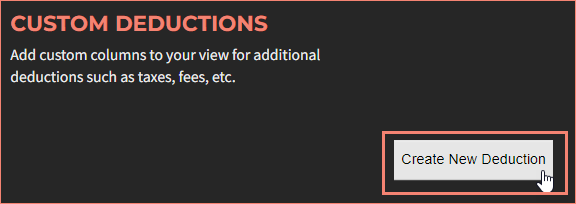
- In the Custom Deductions section, click "Create New Deduction".
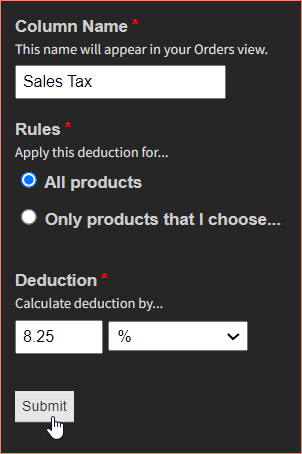
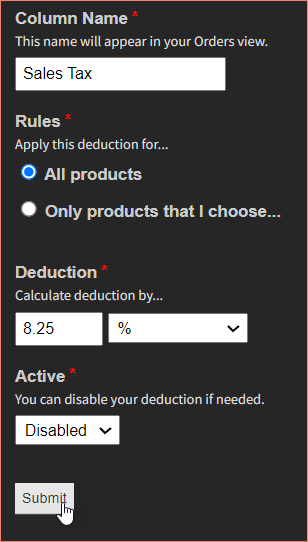
- Fill in the required information:
- Column Name: This label appears on the Orders page
- Rules: Apply to all products or specific ones
- Deduction amount: Percentage or fixed dollar amount
- Click Submit to save.
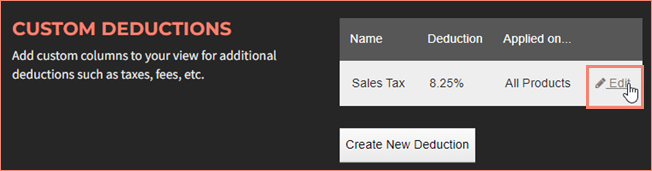
The new deduction column will appear on your Orders screen.

Editing Deductions
Locate the deduction and click "Edit" to update any fields.
Update the fields and submit your changes.
Enabling or Disabling Deductions
You can disable a deduction so it is no longer calculated and shown on the Orders screen:
- Click "Edit" next to the deduction.
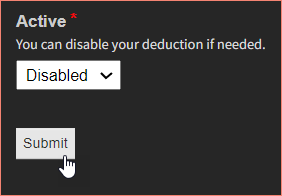
- Toggle the Active dropdown between "Enabled" and "Disabled".
- Click Submit to apply.